
SSP
View our helpful how to guide for using the Self Service Portal
Take me there
API Connectivity
Documentation for our clients utilising our seamless API integrations.
Take me there
Support
In need of assistance? Contact us for support.
Take me there
Video's
Browse our library of user manual videos.
Take me there
App error codes
An overview of possible error codes and how to solve them.
Take me there
Tips & tricks
Helpful insights for a smooth registration process.
Take me there
FAQ
We've assembled frequently asked questions and their answers.
Take me there
The Self Service Portal, (SSP), is an account feature accessible only to Company Administrators. The first person to complete a registration with their company details will automatically become the Company Administrator.
Feel free to watch the video tutorials below to familiarise yourself with some of the SSP’s most important features.
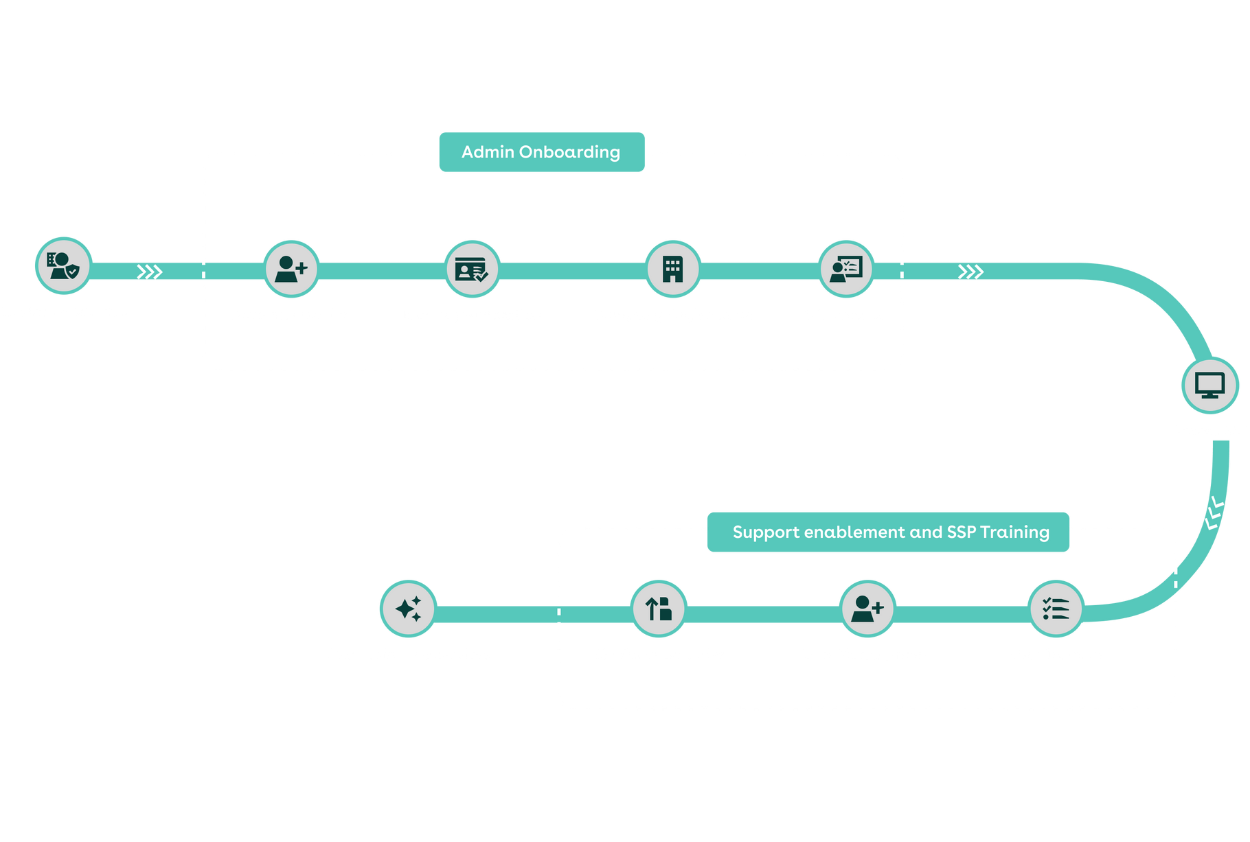
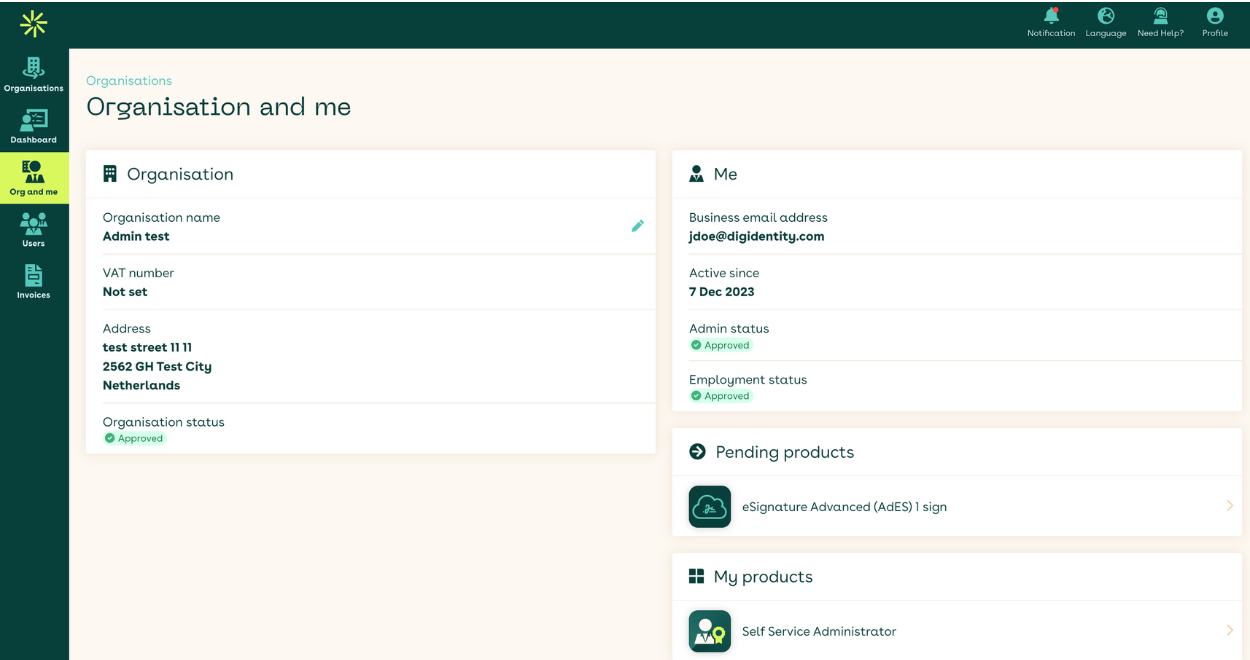
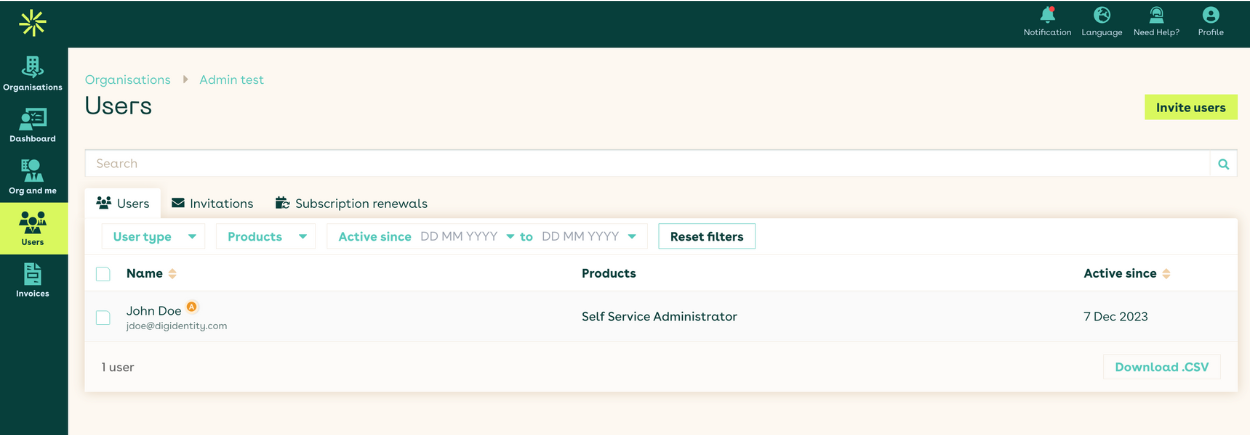
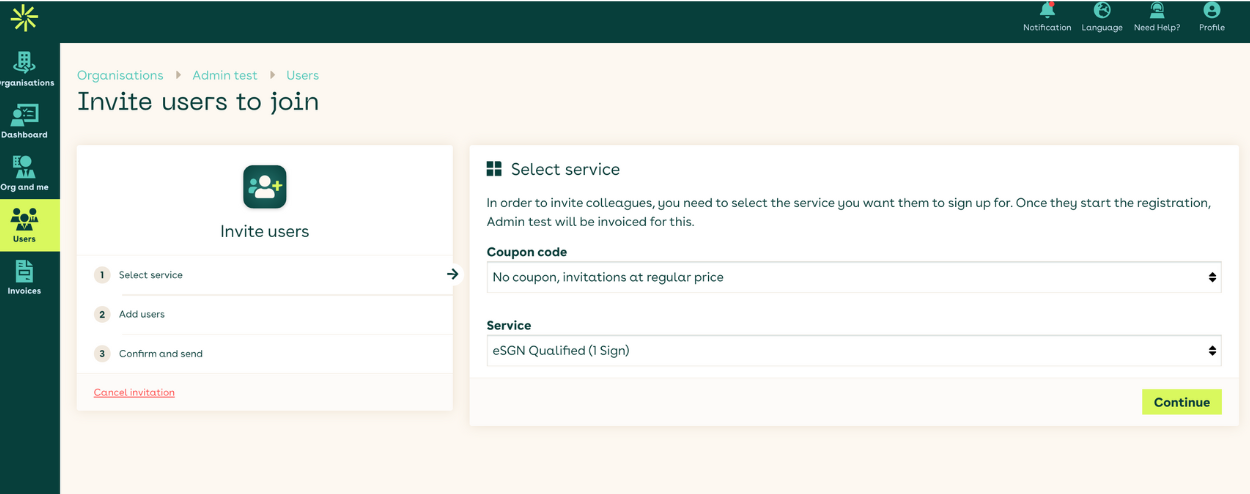
Admin support/training:
For all matters that require Admin support or if you would like to book a training session with a Customer Success Representative, then please contact CustomerSuccess@Digidentity.com
End user support:
For any end user support we kindly request that you contact our dedicated Service Desk directly. You can lodge a support request or contact us directly via phone or email.
When to contact support?
- Issues completing registration
- Difficulty using the app
- General questions about privacy / T&Cs
- Account maintenance
In an event where a user may be encountering technical issues please ask them to contact support using the channels below:
Support in Dutch: Contact
Support in English: Contact
App Error Codes
Orange dolphin
Dialog in App (Eng)
No Internet Connection
Looks like your device is not connected to the internet. Check your connection, switch between mobile data and wifi, and try again.
→ Try again
→ Cancel
Explanation
No Internet
This means that there is no internet connection. Accessing a website (e.g., Google) should also not work. Common reasons include the mobile device being in airplane mode, or there being no Wi-Fi connection or 4/5G connection.
Solution
Check the internet connection
• Ensure the End User’s mobile device is connected to the internet.
• Advise the End User to switch between mobile data and wifi.
• Once the connection has been confirmed, ask the End User to select the "try again" button in the dialog window.
Purple kangaroo
Dialog in App (Eng)
Could not connect
Your device is connected to the internet, but the Digidentity app is unable to reach the server.
→ Try again
→ Cancel.
Explanation
Our backend is not available
We cannot establish a connection to our backend while the device is connected to the internet. This could be due to a VPN issue, proxy, backend completely down, or even just a slow connection causing a timeout.
Solution
Adjust Connection
• Ensure the End User’s mobile device is connected to the internet.
• Advise the End User to switch between mobile data and wifi.
• Advise the End User to disable any active VPN connections.
• Once the connection has been confirmed, ask the End User to select the "try again" button in the dialog window.
Green tiger
Dialog in App (Eng)
Could not connect.
The Digidentity app is unable to reach the server due to an issue on our end. Please come back later or contact customer service for further assistance.
→ OK Error message to be distracted
Explanation
Our backend is not working as expected
Our backend returns unexpected responses and/or is failing on the app's side. Known causes include:
• Internal errors
• Decryption errors
• filesystem full
• migration failure
• Keystore exception
Solution
Standard Troubleshooting:
• Update the app to the latest version.
• Close and restart the app.
• Switch between your Wifi and 4/5g connection
• Reboot your device. • Disable the VPN on your device.
• Update your device's operating system.
If the above troubleshooting steps fail, please contact Digidentity Support.
Maroon parrot
Dialog in App (Eng)
Unsupported device
The device is not supported. Digidentity cannot guarantee the integrity of the certificate because your device is not supported / secure.
Explanation
Device is jailbroken (iOS) or rooted (Android)
Full screen blocking all usage of the app because the user has jailbroken their iOS device or rooted their Android device.
Solution
Unjailbreak/unroot the device.
The only way to proceed with this device would be to unjailbreak/unroot the device. Otherwise, the End User will need to use a device that is not jailbroken/rooted.
White whale / Yellow pigeon
Dialog in App (Eng)
Something went wrong
Something went wrong, sorry for the inconvenience. Please try again. If the issue persists, come back later, or contact customer service for further assistance.
→ Try again
→ Cancel.
Explanation
Generic default error
A default error code is used for errors that could not be classified in one of the other categories.
Solution
Standard Troubleshooting:
• Update the app to the latest version.
• Close and restart the app.
• Switch between your Wifi and 4/5g connection
• Reboot your device.
• Disable the VPN on your device.
• Update your device's operating system.
If the above troubleshooting steps fail, please contact Digidentity Support.
Lemon turtle
Dialog in App (Eng)
You don’t have the required services to be able to continue and you cannot register them yourself.
Contact our helpdesk for more help.
Explanation
The required product is invite only, namely the service you are trying to access can only be acquired through invitation.
Solution
User’s should reach out to their company administrators or contact Digidentity Support for further clarification.
Pink Fox
Dialog in App (Eng)
This is a generic error for situations when retrieving Firebase push token fails.
Explanation
This error code indicates that the user does not have a stable internet.
connection and should try again once their connection improves.
Solution
User’s should check their internet connection and try again.
Blue Hamster
Dialog in App (Eng)
Our platform is experiencing a high volume of requests. Please try again later.
Explanation
This error code indicates that Digidentity’s platform is currently handling too many requests.
Solution
Users should close the registration flow and try again later.
Red Octopus
Dialog in App (Eng)
We are experiencing technical difficulties. Our team is working to restore access.
Explanation
This error code indicates that our backend is unstable, and we are working on restoring it.
Solution
Users should close the app and try again later.
Dialog in App (Eng)
Explanation
Solution
Orange dolphin
No Internet Connection
Looks like your device is not connected to the internet. Check your connection, switch between mobile data and wifi, and try again.
→ Try again
→ Cancel
No Internet
This means that there is no internet connection. Accessing a website (e.g., Google) should also not work. Common reasons include the mobile device being in airplane mode, or there being no Wi-Fi connection or 4/5G connection.
Check the internet connection
• Ensure the End User’s mobile device is connected to the internet.
• Advise the End User to switch between mobile data and wifi.
• Once the connection has been confirmed, ask the End User to select the "try again" button in the dialog window.
Purple kangaroo
Could not connect
Your device is connected to the internet, but the Digidentity app is unable to reach the server.
→ Try again
→ Cancel.
Our backend is not available
We cannot establish a connection to our backend while the device is connected to the internet. This could be due to a VPN issue, proxy, backend completely down, or even just a slow connection causing a timeout.
Adjust Connection
• Ensure the End User’s mobile device is connected to the internet.
• Advise the End User to switch between mobile data and wifi.
• Advise the End User to disable any active VPN connections.
• Once the connection has been confirmed, ask the End User to select the "try again" button in the dialog window.
Green tiger
Could not connect.
The Digidentity app is unable to reach the server due to an issue on our end. Please come back later or contact customer service for further assistance.
→ OK Error message to be distracted
Our backend is not working as expected
Our backend returns unexpected responses and/or is failing on the app's side. Known causes include:
• Internal errors
• Decryption errors
• filesystem full
• migration failure
• Keystore exception
Standard Troubleshooting:
• Update the app to the latest version.
• Close and restart the app.
• Switch between your Wifi and 4/5g connection
• Reboot your device. • Disable the VPN on your device.
• Update your device's operating system.
If the above troubleshooting steps fail, please contact Digidentity Support.
Maroon parrot
Unsupported device
The device is not supported. Digidentity cannot guarantee the integrity of the certificate because your device is not supported / secure.
Device is jailbroken (iOS) or rooted (Android)
Full screen blocking all usage of the app because the user has jailbroken their iOS device or rooted their Android device.
Unjailbreak/unroot the device.
The only way to proceed with this device would be to unjailbreak/unroot the device. Otherwise, the End User will need to use a device that is not jailbroken/rooted.
White whale / Yellow pigeon
Something went wrong
Something went wrong, sorry for the inconvenience. Please try again. If the issue persists, come back later, or contact customer service for further assistance.
→ Try again
→ Cancel.
Generic default error
A default error code is used for errors that could not be classified in one of the other categories.
Standard Troubleshooting:
• Update the app to the latest version.
• Close and restart the app.
• Switch between your Wifi and 4/5g connection
• Reboot your device.
• Disable the VPN on your device.
• Update your device's operating system.
If the above troubleshooting steps fail, please contact Digidentity Support.
Lemon turtle
You don’t have the required services to be able to continue and you cannot register them yourself.
Contact our helpdesk for more help.
The required product is invite only, namely the service you are trying to access can only be acquired through invitation.
User’s should reach out to their company administrators or contact Digidentity Support for further clarification.
Pink Fox
This is a generic error for situations when retrieving Firebase push token fails.
This error code indicates that the user does not have a stable internet.
connection and should try again once their connection improves.
User’s should check their internet connection and try again.
Blue Hamster
Our platform is experiencing a high volume of requests. Please try again later.
This error code indicates that Digidentity’s platform is currently handling too many requests.
Users should close the registration flow and try again later.
Red Octopus
We are experiencing technical difficulties. Our team is working to restore access.
This error code indicates that our backend is unstable, and we are working on restoring it.
Users should close the app and try again later.
Tips and Tricks
Account maintenance
Scenario
Two Factor Authenticator
Solution
If you experience any issues with your account, do not delete the Digidentity app as a troubleshooting method. Doing so will remove your authenticator, requiring you to go through account recovery before you can access your services again. For unresolved errors, please contact Digidentity Support for assistance.
Scenario
New Device Setup
Solution
When upgrading or changing your smartphone, be sure to transfer your authenticator before getting rid of your old device. If you try to log in with your new device, the app notifications will still be sent to the previous phone. If you no longer have access to your old device, you may need to go through account recovery and re-upload your identity documents for security reasons. For detailed steps on transferring your authenticator, please click here.
Document upload
Scenario
Remove Cases from Devices and Documents
Solution
To ensure a smooth identity verification process, make sure to remove any cases from your smartphone or identity document. This is important because we use NFC technology to read the biometric chip in the document, and phone cases or passport covers can sometimes block this signal. By removing them, you’ll avoid any issues during the upload process.
Scenario
Does my document contain a biometric chip?
Solution
You can check if your document contains a biometric chip by looking for a small camera symbol on the front of the document, usually at the bottom.
Scenario
Reduce glare
Solution
Bright lighting can cause glare on your document’s photo page, which may prevent Digidentity from reading it correctly. We recommend completing your document upload in a room with natural light where possible. If that’s not an option, try to adjust the lighting to minimize glare.
Registration Tips
Scenario
User status ‘Pending’
Solution
If a user’s status shows as 'Pending' in the SSP, it means they haven’t completed all the required steps to access the service. Instead of returning to the original invitation email, users should continue their existing registration from their account page under ‘Continue Registration’.
To do this, open the Digidentity app or go to the Account Page and select 'Continue Registration'. This will guide the user through any remaining steps to finalise their registration.
Scenario
Solution
Account maintenance
Two Factor Authenticator
If you experience any issues with your account, do not delete the Digidentity app as a troubleshooting method. Doing so will remove your authenticator, requiring you to go through account recovery before you can access your services again. For unresolved errors, please contact Digidentity Support for assistance.
New Device Setup
When upgrading or changing your smartphone, be sure to transfer your authenticator before getting rid of your old device. If you try to log in with your new device, the app notifications will still be sent to the previous phone. If you no longer have access to your old device, you may need to go through account recovery and re-upload your identity documents for security reasons. For detailed steps on transferring your authenticator, please click here.
Document upload
Remove Cases from Devices and Documents
To ensure a smooth identity verification process, make sure to remove any cases from your smartphone or identity document. This is important because we use NFC technology to read the biometric chip in the document, and phone cases or passport covers can sometimes block this signal. By removing them, you’ll avoid any issues during the upload process.
Does my document contain a biometric chip?
You can check if your document contains a biometric chip by looking for a small camera symbol on the front of the document, usually at the bottom.
Reduce glare
Bright lighting can cause glare on your document’s photo page, which may prevent Digidentity from reading it correctly. We recommend completing your document upload in a room with natural light where possible. If that’s not an option, try to adjust the lighting to minimize glare.
Registration Tips
User status ‘Pending’
If a user’s status shows as 'Pending' in the SSP, it means they haven’t completed all the required steps to access the service. Instead of returning to the original invitation email, users should continue their existing registration from their account page under ‘Continue Registration’.
To do this, open the Digidentity app or go to the Account Page and select 'Continue Registration'. This will guide the user through any remaining steps to finalise their registration.
Frequently Asked Questions
Device requirements
To download and use the Digidentity Wallet app, you will need a smartphone or tablet that can install apps. The app cannot be installed on a desktop computer or laptop.
To use the Digidentity Wallet app, you need a mobile phone that meets the following minimum requirements:
-iOS version 16 or higher for Apple iPhones.
-Android version 10 or higher for Android smartphones.
-A main (rear-facing) camera and a selfie (front-facing) camera.
-Android Go, unique operating systems such as Oppo and Xiaomi, and phones rooted or modified in any other way are not supported.
-For security reasons, Digidentity Wallet does not support rooted/jailbroken devices.
For further information please visit for FAQ page.